
Table of Contents
This post contains affiliate links. If you buy through them, we may earn a small commission at no extra cost to you.
What’s the Ideal Monitor Size for Productivity in 2026?
Monitors now come in every size, resolution, refresh rate, and feature set you can imagine. Ultra-wides, 4K, 5K, 6K, high refresh, HDR, OLED, Mini‑LED—you name it.
But one simple question still trips people up: what’s the ideal monitor size for productivity, and why?
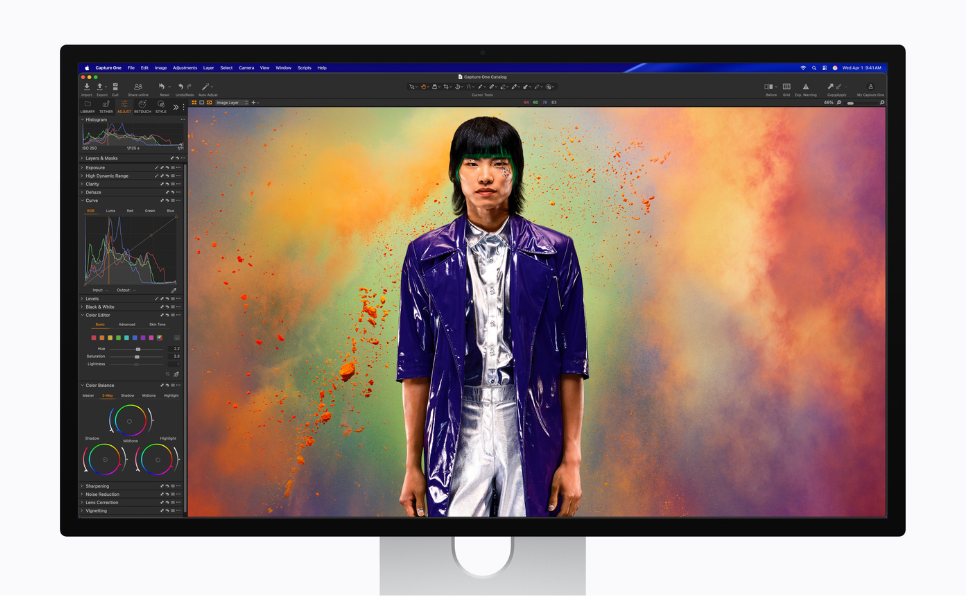
Instead of trying to cover every monitor on the market, let’s zoom in on one clear example: the Apple Studio Display (and its Pro cousins) and see what they reveal about the “sweet spot” for productive work.


Why Look Through Apple’s Lens?
There are countless monitor sizes out there, and every expert seems to have a different opinion: 24”, 27”, 32”, ultrawide, dual screens, and more. But Apple takes a very specific approach to displays, especially for creators and professionals.
Apple’s monitor lineup has included:
• Studio Display – 27” 5K
• Pro Display XDR – 32” 6K (previously available)
Yet today, Apple keeps coming back to 27 inches at 5K for most people. That’s not an accident—it’s a deliberate balance of size, resolution, and pixel density.
This article uses Apple’s displays as a reference point to answer one question:
For productivity, is 27” actually the sweet spot—and how does it stack up against 32”?
I’ll focus on productivity and creation today. Niche or edge cases (like specific gaming setups or multi‑monitor trading rigs) are stories for another day.
Why Monitor Size Matters More Than You Think
Most people either:
• Connect a Mac or PC to a dedicated monitor, or
• Connect a laptop or iPad with an external monitor.
Either way, screen size has a big impact on comfort and productivity.
Here’s why size matters:
• It changes how much you move your eyes and neck.
• It affects how clearly you can see your designs, code, or content.
• It shapes your sense of scale and perspective when creating.
If you’re a designer, developer, video editor, photographer, or creator, you’re not just looking at things—you’re judging details. You need to see your work from different angles and distances without strain.
That’s where the balance of size and resolution comes in.
Size vs Resolution: 24”, 27”, or 32”?
Most modern productivity monitors fall into a few common size buckets:
• 24 inches – budget‑friendly, compact, great for small desks.
• 27 inches – popular all‑rounder, common for 4K and 5K.
• 32 inches – bigger, best for multitasking.
Then there’s resolution:
• FHD (1080p) – fine for basic tasks, not ideal for pro work.
• QHD (1440p) – sharper, better for mid‑range setups.
• 4K – great detail, widely available.
• 5K & 6K – ultra‑sharp, ideal for pro‑level clarity.
On paper, many experts recommend 32” as the ideal productivity size—big enough for multitasking, without going into ultra‑wide territory.
But Apple’s perspective is a bit different.
Apple’s Take: 27” 5K Is the Sweet Spot
Apple’s Studio Display and Pro Display XDR push one core idea:
Pixel density (PPI) matters just as much as physical size.
A 27” 5K display has around 218 PPI (pixels per inch). That’s incredibly sharp—sharp enough that text and UI elements look almost print‑like.
Compare that to many 32” 4K monitors:
• 32” 4K → larger screen, but lower pixel density
• 27” 5K → slightly smaller, but much sharper and more detailed
From a normal desk distance, your eyes actually benefit more from crispness and clarity than from simply more inches.
That’s why many creators gravitate toward 27” 5K:
• It’s big enough to multitask comfortably
• It’s sharp enough to judge details accurately
• It keeps eye and neck movement reasonable
You can see your designs, timelines, code, or layouts clearly without constantly leaning in or turning your head.
In short, for most creative professionals, a 27” 5K display hits the sweet spot for both comfort and precision.
27” vs 32”: Which One Wins for Productivity?
Let’s directly compare:
• 27” 5K monitor (like the Apple Studio Display)
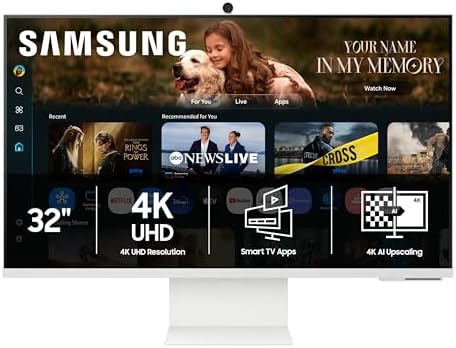
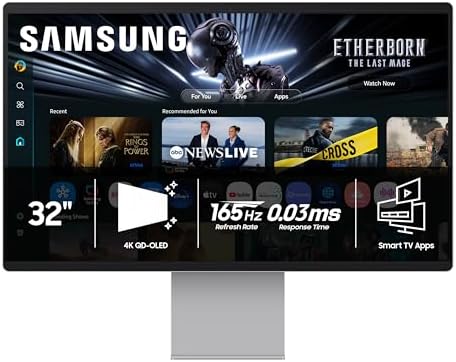
• 32” 4K monitor (a very common productivity choice)
32” 4K: The Bigger Canvas
Pros:
• More physical screen area
• Great for having multiple windows side by side
• Immersive for media and general multitasking
Cons:
• Lower pixel density compared to 27” 5K
• Text and UI elements can look slightly softer
• More neck and eye movement, especially at standard desk distances
27” 5K: The Sharper Tool
Pros:
• Higher pixel density (~218 PPI)
• Razor‑sharp text and visuals
• Ideal for design, editing, development, and any detail‑oriented work
• Less strain from scanning large areas of the screen
Cons:
• Slightly less physical real estate than 32”
• 5K options are fewer and often more premium in price
When you put them side by side, the 27” 5K often feels more “refined” and precise, especially for:
• UI/UX design
• Graphic design
• Photo and video editing
• Coding and interface work
That’s why Apple’s Studio Display line stands out: it pairs top‑tier resolution and pixel density with a thoughtfully chosen 27” form factor, plus premium extras like:
• Aluminium unibody design
• Built‑in speakers
• Integrated webcam
• Solid color accuracy and brightness
If your priority is clarity, comfort, and long‑term productivity, the 27” 5K option usually edges out the 32” 4K.
What About 6K and the Future?
Yes, 6K monitors exist (like the 32” Pro Display XDR), and it’s likely we’ll see more of them.
Over time, higher resolutions tend to trickle down and replace older standards—just like 4K is now replacing 1080p in many setups.
But for now, 5K remains a kind of golden middle for productivity and creative work:
• Sharper than 4K on mid‑sized screens
• Easier to drive than 6K for most GPUs
• Widely supported by modern Macs
The “future” will bring more pixels. The question is how many you actually need for your work and your eyes.
How to Choose the Right Monitor (Step by Step)
Let’s simplify the decision process. When picking a monitor, focus on:
1. Your primary use case
2. Your ideal size at your desk distance
3. Resolution and pixel density
4. Connectivity and compatibility
5. Panel type and longevity
1. For Gaming
If gaming is your priority:
• Aim for a high refresh rate – 120 Hz or higher
• Go for at least 4K on larger screens
• Bigger monitors can enhance immersion and realism
But keep in mind: gaming‑first monitors don’t always offer the best color or pixel density for professional creative work.
2. For Creative Work (Design, Photo, Video, Music, Content Creation)
Key factors:
• Resolution – 4K minimum; 5K or 6K ideal for detail work
• Size – 27” is a sweet spot; 32” if you prefer more room
• Refresh rate – 60 Hz is usually enough, higher is nice but not critical
• Connectivity – USB‑C or Thunderbolt for single‑cable setups
• Color accuracy – look for good color gamut and factory calibration
• Longevity – panel tech that ages well, with minimal burn‑in risk
3. For Developers, Coders, and IT Pros
You’ll want:
• High clarity for reading text (4K or 5K at 27” is fantastic)
• Comfortable viewing over long hours
• Enough space for:
• IDE + browser
• Terminal + docs
• Multiple code windows
Color accuracy matters less than it does for artists, but sharp, strain‑free text is crucial.
Connectivity Basics: How You Plug in Matters
Monitor ports can make or break your setup.
Here are the main types you’ll see:
HDMI
• Widely used in TVs, consoles, and home theaters
• Great for video and audio at high resolutions
• Common, reliable, and easy to use
• But: it does not deliver power to your laptop or tablet
DisplayPort
• Built for high‑performance PC displays
• Supports high refresh rates and high resolutions
• Can daisy‑chain multiple monitors on some setups
• Also does not supply power
USB‑C
• A modern all‑in‑one connector
• Can deliver video, data, and power through a single cable
• Often supports up to 100W of power delivery
• Ideal for connecting laptops and tablets to external displays
Thunderbolt
• The most advanced of the bunch
• Offers very high data transfer speeds
• Can handle multiple 4K or higher‑resolution monitors
• Delivers power, data, and video all in one
• Perfect for docking setups and pro workflows
For a clean, one‑cable desk setup (especially with a MacBook), USB‑C or Thunderbolt monitors are game‑changing.
Compatibility: Especially Important for Creators
Most creators—designers, editors, developers—tend to gravitate toward Macs.
Some monitors are built to work seamlessly with macOS:
• Proper scaling
• Correct color profiles
• Native brightness and volume controls
• Built‑in speakers and webcams that “just work”
Others require:
• Manual configuration
• Extra dongles or hubs
• Separate speakers, external webcams, and peripherals
If you’re a content creator, you’ll likely be juggling:
• External SSDs and drives
• Cameras
• Microphones
• Speakers or audio interfaces
• Keyboards and mice
• Capture cards and other gear
So, prioritize monitors that play nicely with your ecosystem and connect easily to everything you use.
Display Panel Types: VA vs IPS vs OLED vs Mini‑LED
Not all panels are created equal. Here’s the quick breakdown:
VA (Vertical Alignment)
• More affordable
• Decent contrast
• Best for general use and entertainment
• Not ideal for fast‑paced gaming or color‑critical work
IPS (In‑Plane Switching)
• Better color accuracy and viewing angles than VA
• Faster response times
• Great for everyday use, light content creation, and office work
• Still not the top choice for high‑end gaming or top‑tier color workflows
OLED
• Incredible contrast and deep blacks
• Vivid colors; fantastic for dark‑room use
• Can suffer from burn‑in if static elements stay on screen long‑term
• Very impressive for movies, media, and visually rich content
Mini‑LED
• Uses tiny LEDs for much finer backlight control
• Higher brightness than OLED
• Deep blacks with minimal blooming
• No burn‑in risk
• Excellent for professional use and long‑term reliability
Apple’s higher‑end displays (including the Pro Display XDR) lean into this kind of technology to balance:
• Brightness
• Contrast
• Clarity
• Longevity
The Studio Display and Pro Display XDR are designed to check all the important boxes for productivity:
• High brightness
• Strong contrast
• Crisp text and images
• Reliable performance over time


So… What’s the Ideal Monitor Size for Productivity?
Putting it all together:
• For most professionals and creators, a 27” 5K monitor is an outstanding sweet spot.
• It delivers:
• Excellent pixel density for sharp text and visuals
• Comfortable eye and neck movement
• Enough space for multitasking without feeling overwhelmed
A 32” 4K display can be fantastic if you:
• Prefer a larger physical workspace
• Do a lot of multitasking and window management
• Sit slightly farther from your screen
But if you care deeply about clarity, detail, and accuracy—especially for design, photo, video, and development—27” 5K (like the Apple Studio Display) is genuinely hard to beat.
Don’t get lost in buzzwords and spec wars. Instead, ask:
• How far do I sit from my screen?
• How many hours a day do I stare at it?
• What kind of work do I do most of the time?
When you answer those honestly, the “ideal” size becomes obvious.
For many of us in 2026, that answer looks a lot like: a 27‑inch, high‑resolution display that gets out of the way and lets us focus on the work.
And on that front, Apple’s Studio Display absolutely nails it.