

Table of Contents
This post contains affiliate links. If you buy through them, we may earn a small commission at no extra cost to you.
Declutter Your Mobile Phone to Boost Performance: An Expert Guide
What Is Clutter, really?
Clutter is basically crowding. When there’s a crowd, there’s no order—and that applies not just to our homes, but to our digital lives too.
We’re used to clutter in closets, pantries, storage spaces, bags, and car trunks. A bit of clutter isn’t always a big deal—if you’re great at managing it. But if you’re not, it ends up managing you. You waste time hunting for things you know are there somewhere.
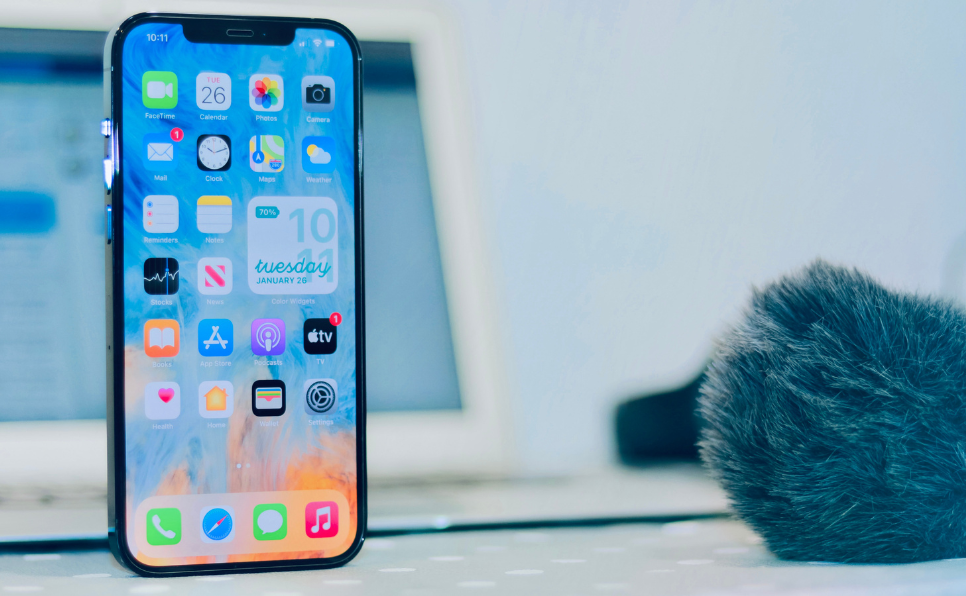
These days, though, the mess isn’t just in physical spaces—it’s on our mobile phones. We wonder where an app went, or why there’s no space left, even though we’re paying for extra storage.
Clutter sneaks into our phones in many ways. The good news: a clean phone runs faster, feels lighter, and is way easier to use. Let’s break down how to declutter your phone and boost performance.

Why Bother Decluttering?
When we think of decluttering, we’ll encounter this question, Do I Really Need Cleaner Apps?
Decluttering is a habit, not a one‑time event. It means taking a little time now and then to reorganise and keep things in order—especially when you’re juggling multiple tasks and constantly short on time.
When you look closely at your phone’s performance, you’ll usually find clutter in a few key areas. We’ll look at these from both Android and iOS perspectives.
Where Phone Clutter Hides
• Home Screen Apps: Most phones let you add endless apps across multiple screens, scrolling sideways (or up and down on some models). The result? You can’t find an app when you need it, assume you don’t have it, download it again—only to discover it was there all along.
• Photos / Gallery App: This is the biggest space hog. Old screenshots, accidental photos, duplicate images, and random videos add up quickly. We rarely delete them in the moment—and they quietly eat up storage.
• Files App: Downloads from emails, WhatsApp, browsers, and other apps pile up here. Many of these files were “one‑time use” items you no longer need.
• Browser Tabs: We tap links, read (or don’t), and leave tabs open. Each open tab uses memory and data. Over time, dozens of tabs slow everything down.
Yes, there are apps like Cleanup, Clever Cleaner, and Boost Cleaner for iOS, and CCleaner or AVG Cleaner for Android. But you don’t need them if you’re willing to spend a little time doing a manual clean‑up.
Let’s see how to keep each ecosystem running smoothly.
Declutter Your Android
You don’t need to be “tech‑savvy” to clean up your Android phone. Just set aside a bit of time and follow these simple steps. This is especially helpful if you’re supporting elderly family members who may not know why their phone is suddenly slow.
1. Empty the Trash / Recycle Bin
Start with your trash or recycle bin. If you never clear it, deleted items just sit there taking up space.
Example (Files by Google):
• Open Files by Google
• Tap Menu > Recycle Bin
• Turn on automatic cleanup every 30 days, or clear it manually
Different brands have slightly different menus, but the idea is the same: don’t let the trash sit forever.
2. Clean Up the Photos App
• Open Google Photos
• Go to Clean up or Suggestions (depending on your version)
• Look for Duplicate files or similar suggestions
Google does its best to detect duplicates, but it’s not perfect. Use these suggestions as a guide, then you decide what to delete. Focus on:
• Blurry photos
• Multiple shots of the same thing
• Old screenshots you no longer need
3. Clean the Files App
• Open your Files app
• Sort by name, size, or recent
• Look for duplicates (files with the same name or with (1), (2), etc.)
Delete what you don’t need—especially large PDFs, old videos, and long‑forgotten downloads.
4. Close Tabs and Clear Browser Data
In Google Chrome:
• Manually close all open tabs
• Tap the three dots (Menu) > History > Clear browsing data
• Choose All time
• Select Cookies and site data and any other data you want to remove
Then clear cache:
• Go to Settings > Apps > Chrome > Storage > Clear cache
Note: Clearing certain data may sign you out of websites. Make sure you’ve saved or noted down important passwords before you do this.
5. Reorganise Your Apps
• Move your most‑used apps to the first home screen so you’re not endlessly scrolling
• Long‑press rarely used apps and uninstall them
• Remove any app you haven’t opened in months—if you need it later, you can always reinstall


Declutter Your iPhone
iPhones collect clutter just as easily as any other phone. A quick tune‑up goes a long way.
1. See What’s Eating Your Storage
• Go to Settings > General > iPhone Storage
You’ll see which apps are using the most storage. You can’t delete everything from this screen, but it’s a great overview of what’s taking up space (apps, media, system data, etc.).
2. Clean Up the Files App
• Open Files
• Tap the three dots in the top corner
• Choose List view
• Sort by Size
Now you can quickly spot large files and decide what to keep or delete.
3. Manage Your Photos and Videos
iPhone’s Photos app is powerful, but it still needs you to do some spring cleaning.
• Open Photos > Library
• Tap the three lines (Filters) at the top
• Filter by Photos or Videos
Scan for:
• Random 4K videos kids recorded while playing with your phone
• Duplicates or near‑duplicates (burst shots, repeated selfies)
• Old screenshots
Select and delete in batches to free up serious space.
4. Close Safari Tabs and Clear Cache
• Open Safari
• Tap the tabs icon (squares) or the three dots, then select All Tabs
• Close tabs one by one, or use options like Close All Tabs if available
To clear cached data:
• Go to Settings > Safari
• Tap Clear History and Website Data
This can sign you out of websites and remove some stored data. Make sure important passwords are either stored in Passwords (iCloud Keychain) or written down somewhere safe. This step can’t be undone.
5. Maintain WhatsApp Media
If you’re in multiple WhatsApp groups, your Photos app is probably full of memes, forwards, and random videos.
• Open Photos
• Find the WhatsApp folder/album
• Manually select and delete photos and videos you don’t care about
You can also tweak WhatsApp settings, so media doesn’t automatically save to Photos in the future.
Stay Organised Going Forward
The best phone is a clean phone. A little organisation keeps everything looking fresh and running fast.
Home Screen Strategy
Think of each home screen page like a “room” in your digital house:
• Front page: daily essentials (phone, messages, camera, banking, maps, email, etc.)
• Second page: often‑used but not critical apps
• Folders: group similar apps (e.g., “Social,” “Work,” “Finance,” “Travel”)


On iPhone:
• Long‑press any app until the icons jiggle
• Choose Remove App
• Delete App = removes the app and all its data completely
• Remove from Home Screen = hides the app but keeps it in the App Library
To find a hidden app:
• Swipe down on any home screen
• Start typing the app name—it will still appear in search
You can also drag apps directly into the App Library if you don’t want them on the home screen but still want them installed.
Keep Things Updated—and Light
• Regularly update apps and your phone’s software for better performance and security
• Use iOS’s Offload Unused Apps option (in Settings > App Store or iPhone Storage) so rarely used apps are removed but their data is kept; when you reinstall, you pick up where you left off
Make Decluttering a Habit
Instead of waiting until your phone screams ‘Storage Almost Full,’ schedule a quick 10–15 minute clean‑up every month:
• Clear old photos/videos
• Empty the trash/recycle bin
• Close browser tabs and clear cache
• Remove unused apps
A little consistency keeps your phone fast, clean, and ready for whatever you need it to do—without the digital chaos.